
Visual Navigator.
Singlepoint Visual Navigator is a configurable and customizable visual interface that gives every user a simpler way to navigate Singlepoint. Create role-specific interfaces that reflect how your teams work, giving employees direct access to the information, data and actions they need.



Give every user the right view
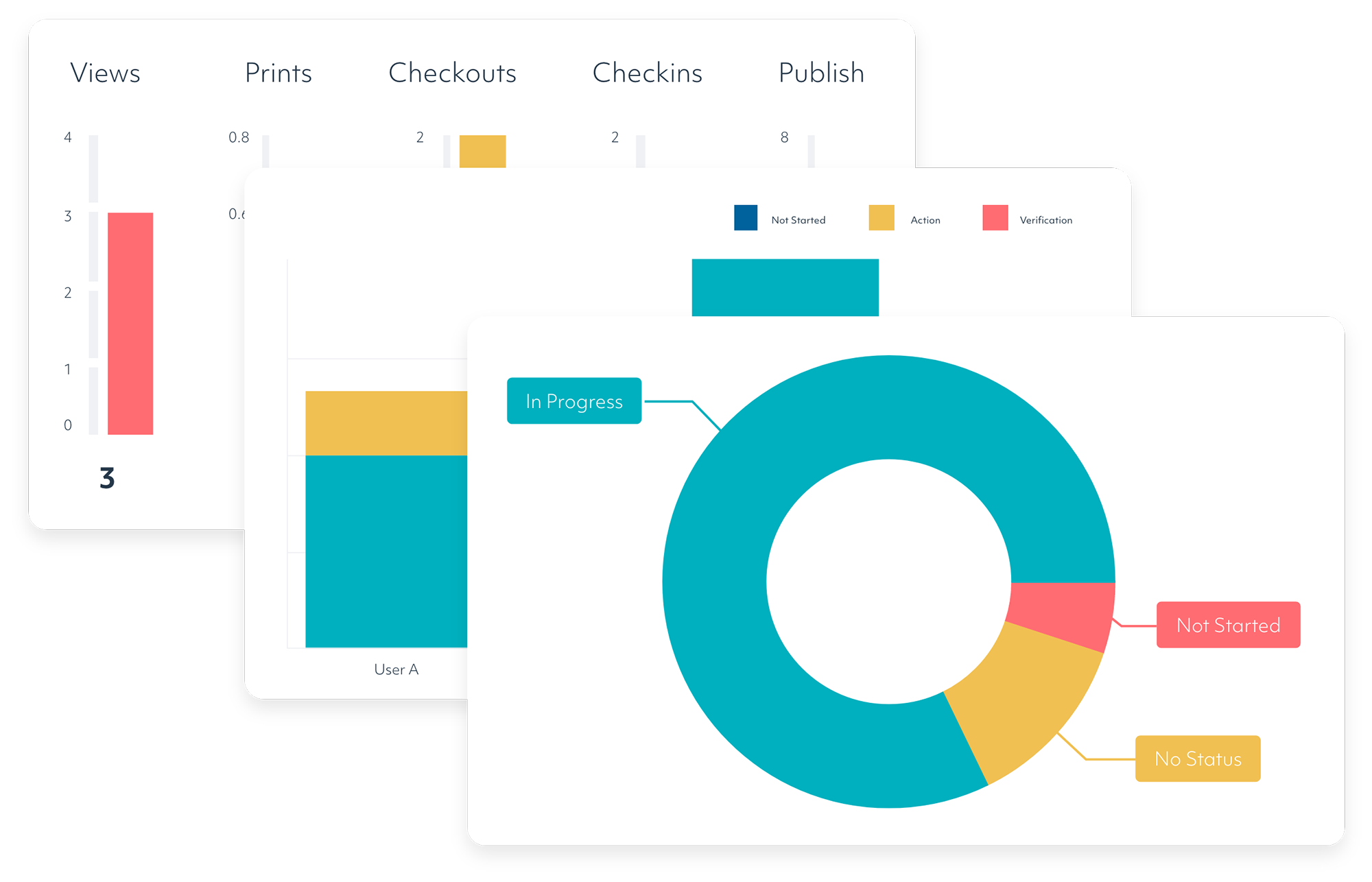
Each role in your organization has different needs. Operators need quick access to work instructions and drawings, engineers may need to raise engineering change requests, supervisors and managers need visibility of operational data, while senior leaders may want direct access to real-time dashboards. Visual Navigator lets you create interfaces around these different requirements rather than asking every user to navigate Singlepoint in the same way.
Navigate multiple layers of information
Visual Navigator allows users to navigate and access multiple layers of information through a visual interface. Interactive hotspots on images act as gateways to deeper, interconnected layers, giving users direct access to relevant documents, data and functionality.
Drive engagement through design
Create interfaces around the information and tasks your users actually need. By making Singlepoint easier to navigate for different roles, Visual Navigator helps employees spend less time searching for information and interact with processes in a way that reflects their day-to-day work.
Integrate with third-party systems
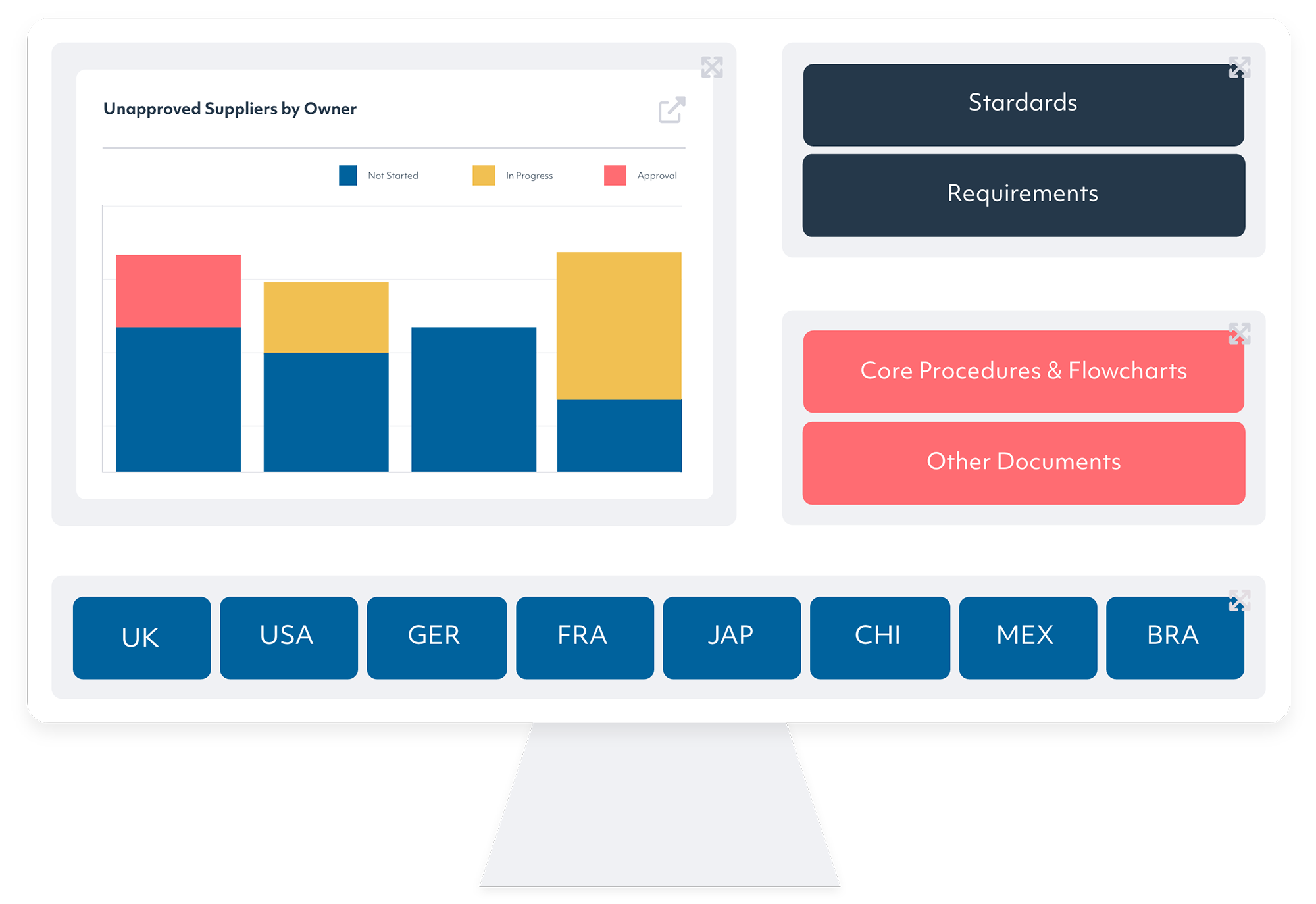
Visual Navigator integrates with existing software, including ERP systems, Power BI and other business applications. Bring relevant information from different systems into the interface, giving users easier access to the tools and data they need from one place.
Customize Visual Navigator for every role
Create interactive hotspots
Create a wide variety of hotspots using images, parameterized SVGs, shapes and links. Embed real-time reports or even entire websites, giving users access to different types and layers of information from the same visual interface. Because hotspots are connected to the rest of Singlepoint, animated hotspots and the information they link to automatically update as changes are made to the underlying database.
Take action from the interface
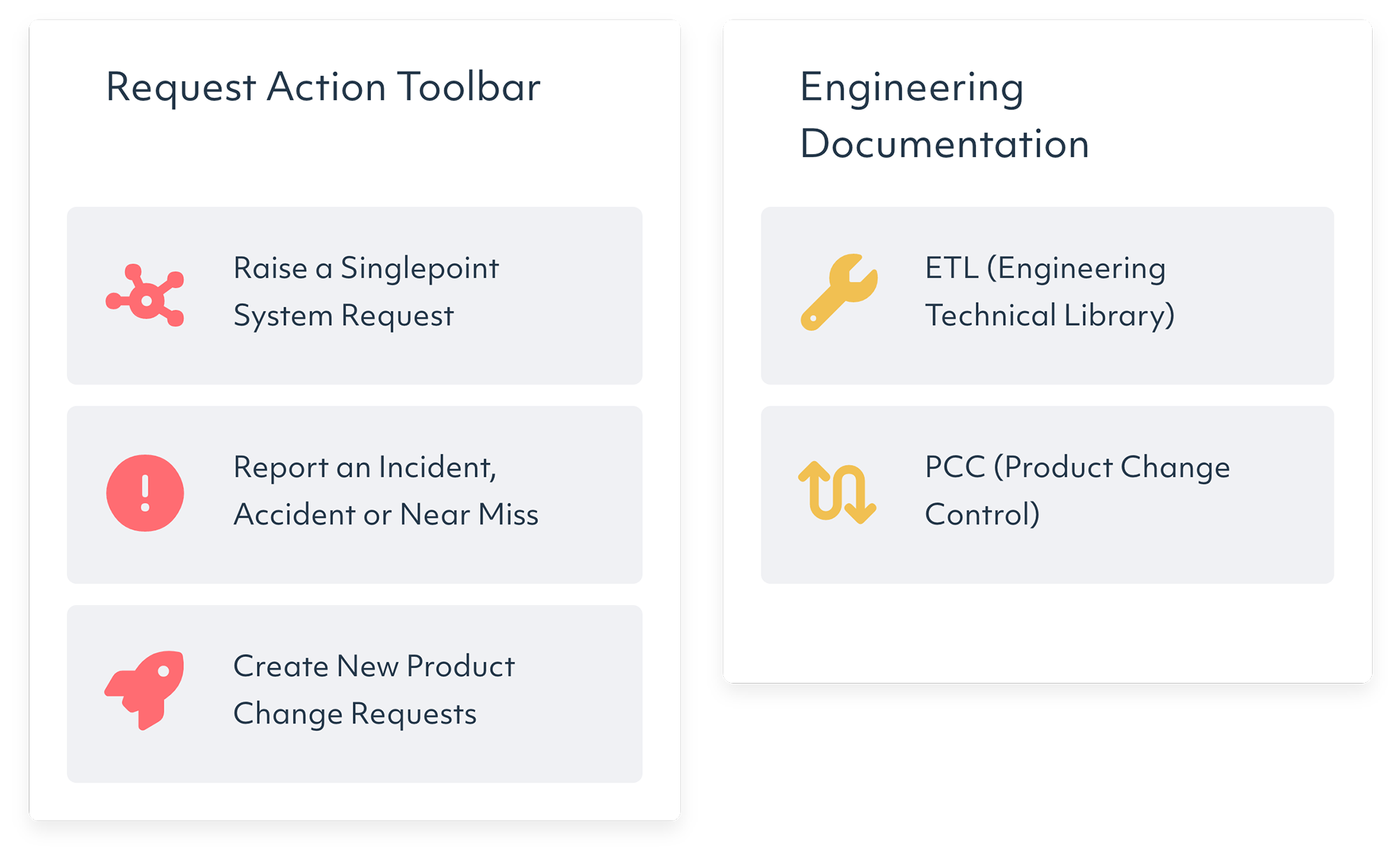
Visual Navigator goes beyond navigation by allowing users to initiate actions and workflows directly from the interface. Users can edit an object, create a new one or perform role-specific tasks. Engineers, for example, can raise issues directly through an action without having to navigate away from the relevant information.
Optimized for shop floor touchscreens
Visual Navigator is optimized for touchscreen use, giving shop floor employees quick access to the information and tasks they need. Workers can view designs, access instructions or report issues through an interface created around their working environment.
Simple to create and update
Visual Navigator's self-service approach allows you to drag, drop and design interfaces without complex development. Layer management keeps images and content organized within a clear structure, making interfaces easier to navigate and maintain as your requirements change.
"For manufacturing companies of any size, Singlepoint scales really well. It gives you a lot of flexibility and power without a stupidly high price tag."
- Horizons.
Get our QMS fact sheet
Download our fact sheet to learn more about how Singlepoint’s quality management software can help you.
Our case studies
Surface Transforms: Document Control and Training Management
Thanks to Singlepoint, Surface Transforms has significantly upgraded their document control and safety processes. The software has catalysed a paperless revolution on the shop floor, instilling greater confidence in their operational practices.

Doncasters Trucast: Business Intelligence enhances efficiency
Singlepoint Business Intelligence has redefined data interaction for Doncasters Trucast, giving staff and managers instant insight into manufacturing performance
Fablink: NPI and APQP
Fablink redefines project management in the automotive industry with Singlepoint, gaining total visibility into NPI and APQP tasks
ZF: Document Control and Management
ZF revolutionises document management with Singlepoint, leading to significant time savings and risk reduction.
Teleflex: Customised complaints module enhances global operations
Senior Quality Engineer Tineke Soors praises Singlepoint for transforming Teleflex’s customer complaint handling, making it more efficient and transparent.

Pactrol: Customised workflows streamlining cross-border operations
Explore the journey of Pactrol Controls Ltd as they navigate the challenges of relocating manufacturing to Hungary while maintaining operational excellence.

United Language Group: Achieving global compliance with Competency Checker
Facing challenges with the new QMS standards, United Language Group successfully integrated the Competency Checker module alongside existing modules.
Kasai: Improving Engineering Change Processes
Kasai, a global front-runner in automotive interior and exterior manufacturing, faced challenges with its engineering change process that revolved around complex spreadsheets and scattered communications.
Metrol: Calibration Manager
Metrol Technology’s journey with Singlepoint’s Calibration Manager is a testament to the power of a single source of truth. Witness a transformation marked by efficient workflows, user empowerment and the unmatched versatility of Singlepoint.

Bandvulc: From disjointed audits to streamlined efficiency
Hitachi Rail Europe, Ltd. is a wholly owned subsidiary of Hitachi, Ltd. and a total railway system supplier offering rolling stock, traction equipment, signalling, traffic management systems and maintenance centres.
FAQs
Can I customise the UI for different departments in my company?
Yes. Visual Navigator can be tailored to different departments, roles, or functions, ensuring employees see the processes, documents, and information most relevant to them.
Is there a steep learning curve associated with Visual Navigator?
No. Visual Navigator is designed to be intuitive and easy to use, helping employees quickly find information through a visual process-based interface.
What is Singlepoint Visual Navigator, and how does it differ from a standard document menu or folder hierarchy in a QMS?
Visual Navigator presents information through interactive process maps rather than folders. This makes it easier for users to understand processes and access relevant documents in context.
How does Visual Navigator stay current when documents or procedures are updated, and what happens to the process map?
Visual Navigator links directly to controlled documents. When documents are updated, users automatically access the latest approved versions without needing to change the process map structure.
How does Visual Navigator help demonstrate a documented process approach during an ISO 9001 external audit?
It provides a visual representation of organisational processes and their associated documents, helping auditors understand process interactions and evidence of a process-based management system.
Our employees rarely engage with the QMS because they struggle to find the right procedures for their role. How does a visual process interface solve this?
A visual interface guides employees through processes and provides direct access to relevant information. This reduces searching, improves engagement, and encourages consistent process compliance.
How does Singlepoint Visual Navigator connect document control, training requirements, and audit findings so employees can access everything relevant to their role from a single process view?
Visual Navigator links processes with documents, training records, audits, and other QMS activities. This provides a single point of access to information required for each role or process.